

A Facebook Custom Audience is a group of people Meta can target using data you already have, like a customer list or your website visitors. How you build one has changed, as Ads Manager now runs many of them through Advantage+ as a suggestion.
I spent over three days scoping a retargeting setup. That meant building and testing a cross-section of Meta's current source types, among them a customer list, the Meta Pixel, app events, a catalog, video engagement, and an Instant Experience ad.
This guide covers every source type Meta currently offers, the hard limits that trip people up first, and what actually happens once Advantage+ starts treating your audience as a suggestion instead of a hard rule.
Facebook Custom Audiences: TL;DR
- A Facebook Custom Audience is a group of people Meta's ad system can target, built from data you already have. That can be a customer list, your website visitors, or people who engaged with your Page or Instagram account.
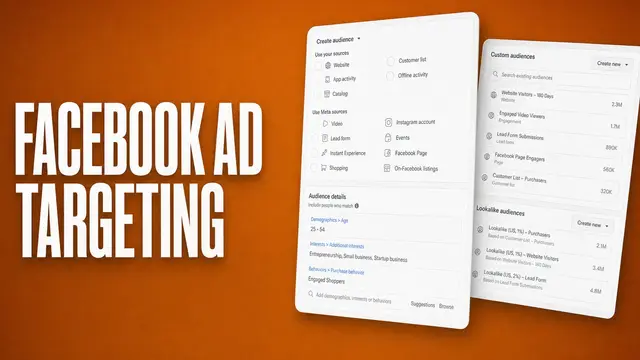
- Meta currently groups its source types into two buckets. One is data you bring (customer lists, your website, your app, your catalog, and offline purchases). The other is engagement on Meta's own apps (video views, lead forms, your Page, your Instagram account, and more).
- You build one inside Ads Manager's Audiences tab. Then you use it to retarget warm visitors, exclude people who already converted, or seed a lookalike audience that finds new people similar to it.
- Add a Custom Audience to an Advantage+ ad set, and it routes through an Advantage+ suggestion by default. You may need to uncheck "Use as a suggestion" to use it as a hard include.
What Is a Facebook Custom Audience?
A Facebook Custom Audience is a group of people inside Meta's ad system, built from data you already have about them.
That data can be a list of past customers or people who visited your website. It can also be people who have engaged with your Facebook Page, Instagram account, or past ads.
Once you build one, you can show ads only to that group, or leave that group out of a different campaign. You can also use it as the seed for a lookalike audience that targets new people similar to that group.
Main Data Sources for Facebook Custom Audiences
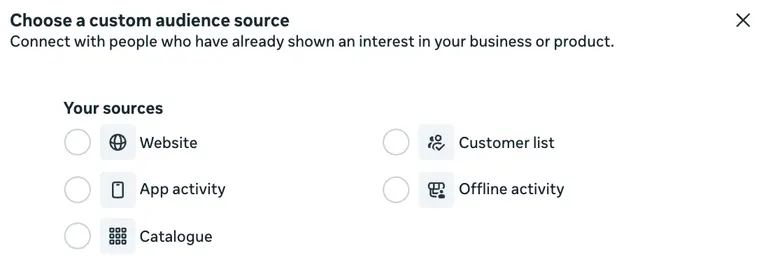
Meta groups every Custom Audience source into two categories. The first is data you already hold about people, and the second is how people have engaged with your business directly on Meta's own apps.
Data you bring:
- Customer list: People matched against Meta's own users from emails, phone numbers, or other contact details you already have.
- Website: People who visited your site, tracked through the Meta Pixel, a snippet of tracking code you add to your site.
- App activity: People who took a specific action inside your app, like opening it or making a purchase.
- Catalog: People who viewed or interacted with items in your product catalog.
- Offline activity: People matched to an in-store purchase or another offline interaction you upload separately.
Engagement on Meta's own apps:
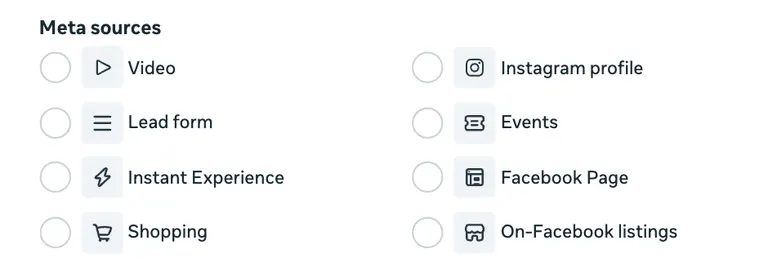
- Video: People who watched a set amount of your video content on Facebook or Instagram.
- Lead form: People who opened or submitted one of your lead ads.
- Facebook Page or Instagram account: People who engaged with your Page or your Instagram business profile.
- Instant Experience, shopping, events, and on-Facebook listings: People who interacted with a full-screen ad, your Shop, an event you ran, or a Marketplace listing.
That is 13 source types in total today, more than the shorter lists older guides describe. Meta also caps how many you can keep active at once, at 500 custom audiences per ad account, per Meta's Business Help Center.
How to Create a Facebook Custom Audience in Ads Manager
Every source type starts the same way, with two exceptions. App Activity routes through an app promotion campaign instead, and Offline Activity is built through Events Manager instead. Both are covered in their own sections below.
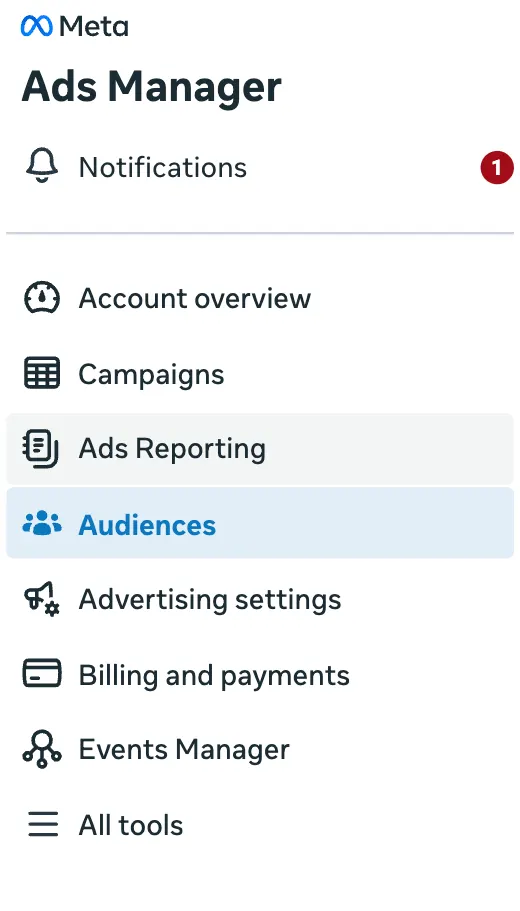
Open Ads Manager, go to Audiences, select Create audience.
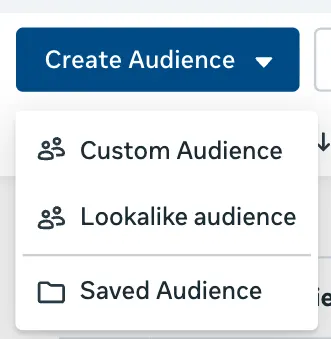
Then Custom audience. From there, both the screens and the details you need before clicking Create depend on which source you pick.
Customer List
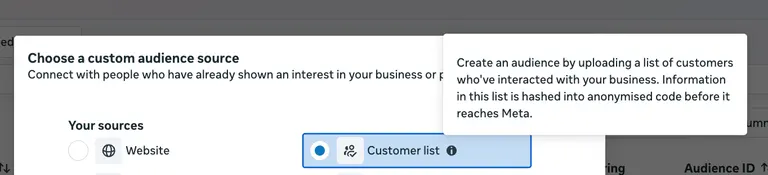
My first upload failed. I built a customer list using a CSV file, a simple spreadsheet export of about 1,160 rows.
It had phone numbers, names, region, and country columns. The file passed every check Meta's tool ran. Then it failed at the final step with a flat "Failed to upload the client list. Try again."
The solution was one missing character. Meta expects every phone number to start with a country code, and nothing in the earlier steps had flagged that it was missing. The second attempt, with every phone number reformatted and nothing else changed, uploaded clean on the first try.
To build a customer list audience:
- Save your customer data as a CSV or TXT file, with at least 1,000 customers. Include one piece of contact information Meta calls a "main identifier," like an email or a phone number, per Meta's customer list formatting guidelines.
- Format phone numbers with a leading country code. Keep emails, names, and locations in their own columns.
- In Audiences, select Create audience, then Custom audience, then Customer list.
- Upload your file. Map each column to the right identifier.
- Choose whether the audience is for inclusion, exclusion, or exclusion only. Name it, and select Import and create.
Meta scrambles every identifier into a code that can't be reversed before matching it against its own users. It calls this whole process hashing. A "Match Score" out of 10 shows how well your list matched.
Meta marks a list "Outdated" once it’s been untouched for more than 30 days. That can affect how your ads deliver, per Meta's customer list formatting guidelines.
A thin file, with a phone number and nothing else, tends to land on the lower half of that 10-point scale. More identifiers per row give Meta more ways to confirm each match.
Those identifiers can be a first name, a last name, and a city, alongside the phone number. That tends to push the score up without changing a single customer on the list.
A refreshed upload resets the 30-day clock too, so a routine monthly re-upload clears the Outdated label. The same file, uploaded again with nothing else changed, is all it takes.
If your source file comes out of an older CRM export, run the phone-number formatting check before uploading it. Meta didn't flag the missing country code during my earlier upload checks, so the formatting issue was easy to miss until the final step.
Website (Meta Pixel)
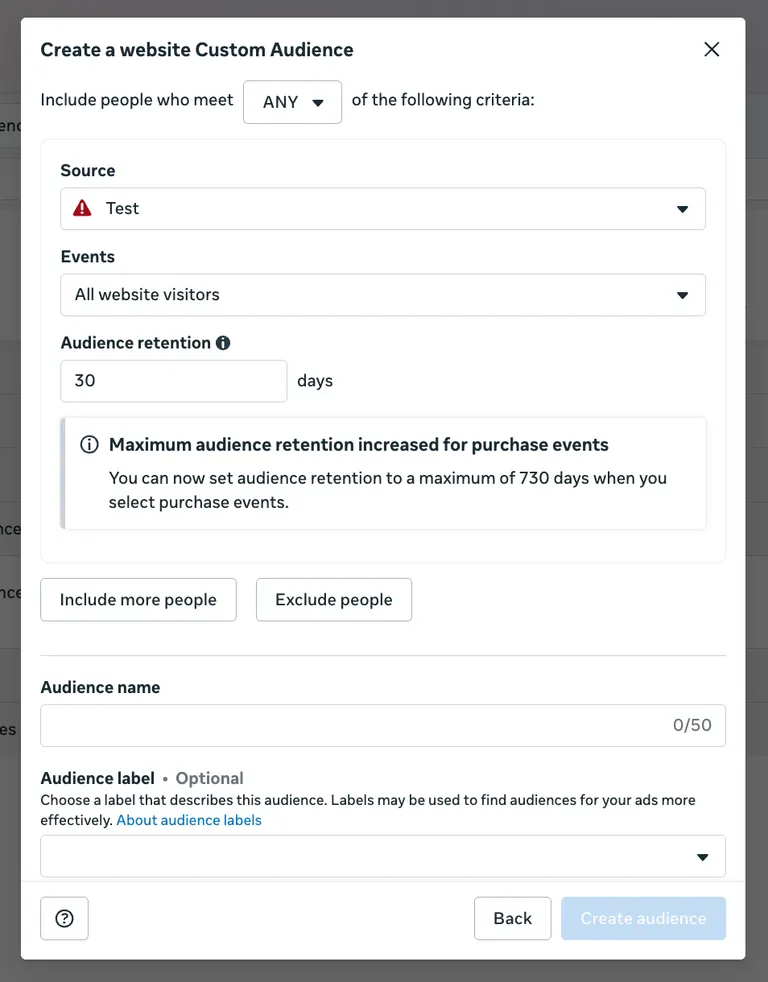
A new website audience I built was at a "Below 1,000" status for the first couple of days, then it moved to Ready. The Meta Pixel was firing the whole time correctly.
The pixel works right away, but the audience count takes time to catch up.
To build a website audience:
- Confirm the Meta Pixel is installed and active on your site.
- In Audiences, select Create audience, then Custom audience, then Website.
- Choose your Pixel as the source. Then choose which events count, like anyone who visited or only people who visited specific pages.
- Set Audience retention in days, how far back someone's visit still counts.
- Name the audience. Select Create audience.
The audience only starts counting people from the moment you create it, and it won't backfill past visits. Meta recommends waiting until you have several hundred people in the audience before using it.
iOS privacy settings can shrink the final count further. A lookalike built from the same source doesn't shrink the same way, per Meta's setup page for this source.
The retention window decides how fast that number climbs. Ads Manager lets you set it anywhere from a single day up to 180 days for standard website events, per Meta. Purchase-event audiences are the exception: Meta extended their retention ceiling to 730 days.

A narrow window on a low-traffic site is exactly how an audience stalls at "Below 1,000" for days at a time. The pool only ever holds whatever traffic landed inside that rolling window, and a slow site can't outrun it.
A wider window doesn't backfill the visits that already happened. The audience still only counts forward from the moment you create it, but it does mean every new visitor counts for longer. That's usually the faster way out of a stalled audience than waiting.
For a low-traffic site specifically, I'd set the retention window toward the long end from the start. A narrow window crawls toward 1,000 for a week. Then it gets widened only after the fact. That means real days lost to a stalled audience, for no reason.
App Activity
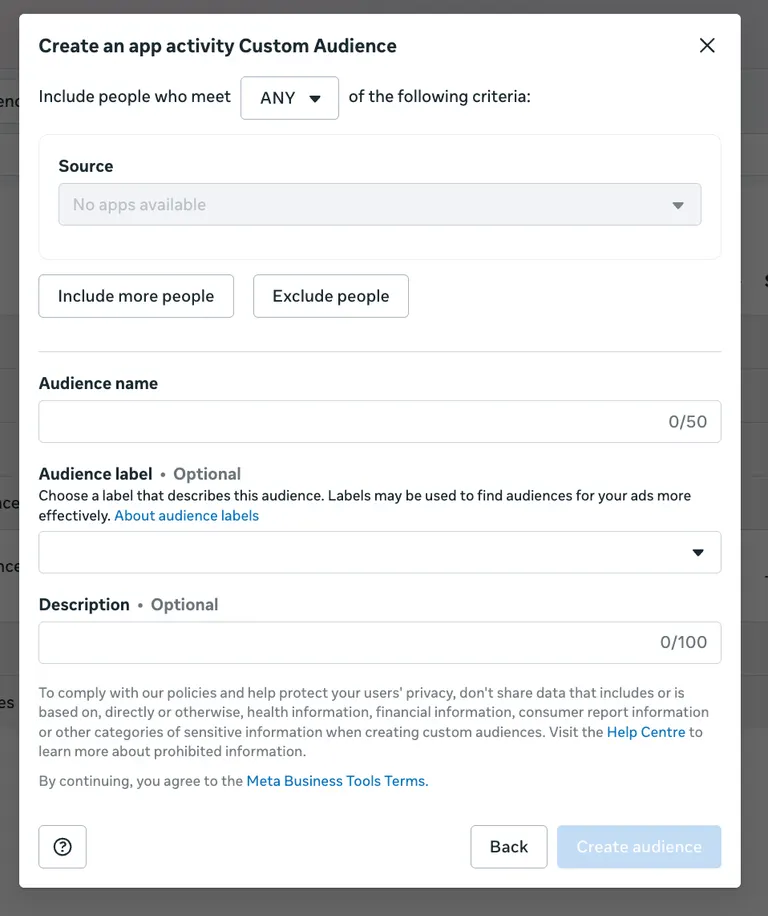
The first time I set this up, I expected a plain audience builder, and Meta routed the whole flow through an Advantage+ app campaign instead. My custom audience only appeared as something called an audience suggestion, covered further down.
To build an app activity audience:
- Register your app with Meta. Add its tracking code so Meta can see what people do inside the app. Meta calls each of these an app event.
- Start an app promotion campaign in Ads Manager. Reach the Audience step.
- Under Suggest an audience, select Custom audience inclusions, then Create new, then Custom audience.
- Choose App activity as the source. Then pick your app and the events to include, like people who opened the app or made a purchase.
- Set Audience retention, name the audience, then select Create audience.
The audience is usable right away. But it can take up to an hour to fill in with people who already matched in the past, per Meta. That hour window is riskier than it sounds.
The audience is technically live, and it's attached to the campaign from the moment you create the audience. Nothing stops the ad set from running against a half-empty suggestion in that window.
Every app activity audience you build counts toward the same 500-audience cap, even when it’s labeled a suggestion. Testing several app-event variants uses up a slot each, so the cap fills faster than you’d expect.
Each one takes up its own slot, so you can burn through that ceiling faster than expected. That holds whether or not it ever stops being labeled a suggestion.
Whether the Advantage+ wrapping is worth fighting depends on what the campaign needs. A simple retargeting push aimed at people who already opened the app once is worth the extra step every time. Uncheck "Use as a suggestion" under "Further limit the reach of your ads."
If you leave that box checked instead, the algorithm can expand past a tightly scoped retargeting list.
For anything more exploratory, where the goal is finding new high-intent users, the suggestion is doing exactly what it's built to do. Overriding it gives up the one thing Advantage+ is for.
Catalog
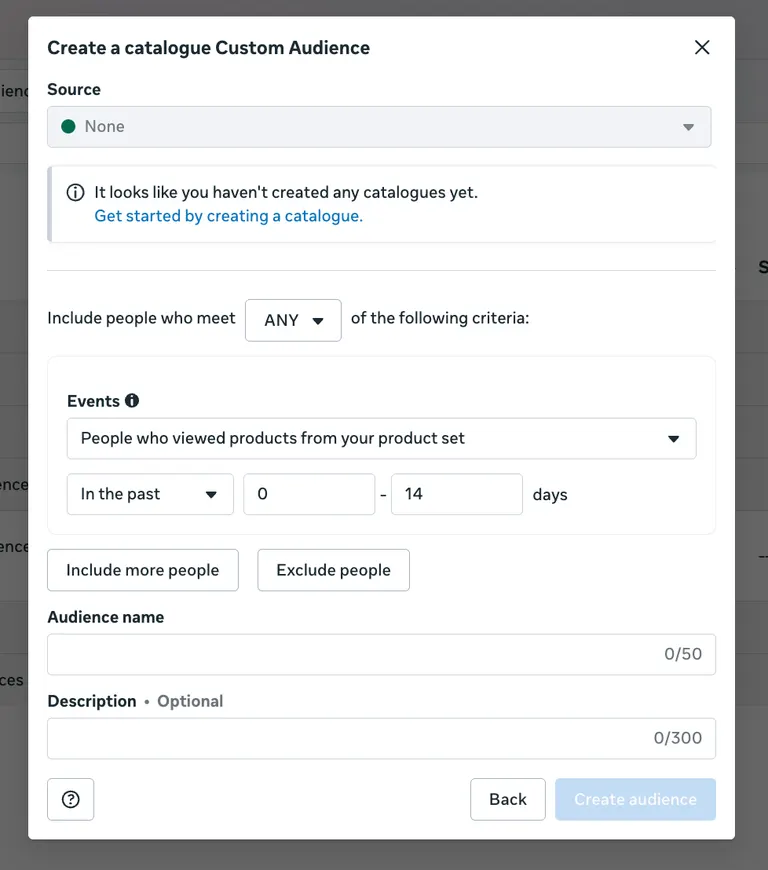
Catalogue audiences come from product-level activity, which is a narrower slice than your website or app as a whole. That makes one worth building if the business already runs catalog or dynamic ads and wants a Custom Audience that lines up with the same inventory.
To build a catalog audience:
- Confirm a product catalog is already connected to the ad account through Commerce Manager. Without a connected catalog, this source option doesn't appear.
- In Audiences, select Create audience, then Custom audience, then Catalog.
- Choose which catalog to pull from, then the activity to build around, like people who viewed an item, added one to their cart, or purchased.
- Set Audience retention. If needed, narrow the audience to a specific product set.
- Name the audience. Select Create audience.
The product-level events this audience needs (ViewContent, AddToCart, and Purchase) still have to be sent to Meta separately. They go through the Meta Pixel or the Conversions API. Each event also has to carry a content ID that matches an item ID already in the catalog.
On a small catalog audience of mine, the count sat at zero longer than I expected, even with the catalog itself showing as connected in the Commerce Manager.
The catalog and the pixel were both connected and active. The events firing on the site weren't tagged with the same product IDs the catalog used, so Meta had nothing to match those events against.
Here are two limits to plan around before you build a Catalog audience:
- Retention runs on the same window as the website and app sources above.
- It also counts toward the same 500-custom-audience cap covered in the app activity section. Here, that cap gets used up faster than it looks.
A catalog with many product categories can burn through much of the account's 500-audience allowance covering Catalog alone, before you ever get to website, app, or engagement sources.
The natural instinct is to build one audience per product set. Start with one audience covering the whole catalog instead, split only by viewed, added to cart, and purchased. Narrow it down to a specific product set only after that.
A smaller catalog split by product set too early spreads its activity across several near-empty audiences. Each one stays too thin to reach a usable size on its own.
Offline Activity
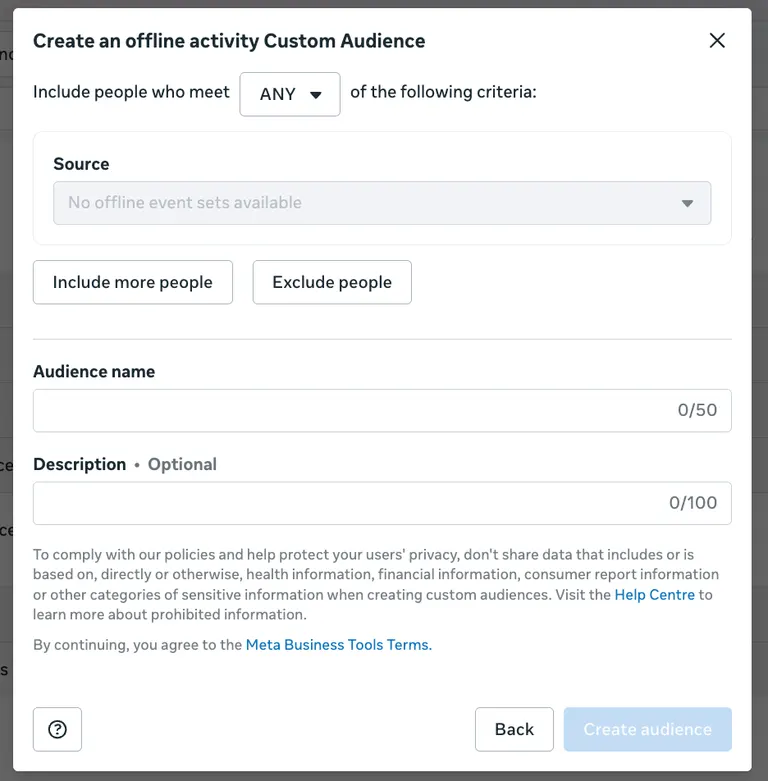
This one lives in a different tool. Along with App Activity, it's the one other source in this guide that doesn't get built from the Audiences tab. It's built through Events Manager instead. The data behind it, like an in-store purchase or a phone order, never touches the Meta Pixel.
The upload itself still runs through the same hashing step covered in the customer list section above. The same "main identifier" rules apply too, so you need an email, a phone number, or another field Meta can match on.
A point-of-sale export that already carries clean phone numbers and matching country codes needs no extra reformatting on that front.
It still needs the transaction time, event type, and other required event details before it can go into Events Manager. That makes this the one source type where getting the customer-list formatting right the first time pays off twice.
To build a customer audience this way:
- Go to Meta Events Manager. Select your data source.
- Select the Data Sources icon, then Create, then Create Custom Audience.
- Choose the Source, the Events, and the Retention window.
- Add any extra include or exclude criteria.
- Name the audience. Select Create audience.
The retention math works differently here too. Meta's developer documentation on offline events puts the upload window for an in-store or offline sale at 62 days. That's counted from the date of the sale. A transaction from two months ago is already close to falling outside what Meta will accept.
Once an event is in the system, the audience itself follows the same 180-day retention ceiling covered in the website source above.
That 62-day clock is the real reason an upload schedule needs closer attention than a quick glance would suggest.
Meta asks for in-store transactions within 62 days of the sale, but its Conversions API also limits how old an event’s timestamp can be. Check which rule applies to your upload method before you set a monthly schedule.
If you only use the website and app sources above, you can skip this one for now. It only applies once you have offline sales data to upload separately.
Meta Engagement Sources: Video, Lead Forms, Facebook Page, and Instagram
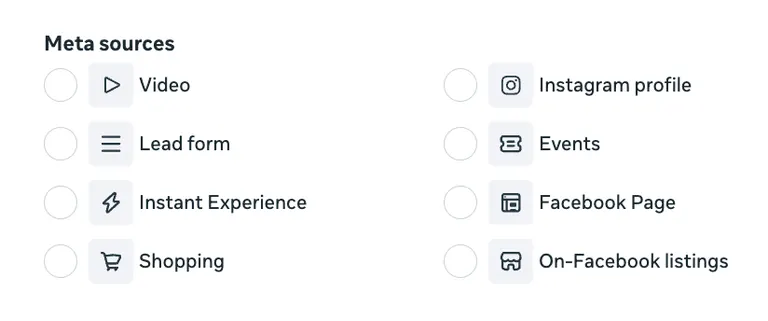
The Advantage+ issue from the app activity section above was most obvious here. When I built a video audience for a retargeting ad set, my custom audience sat under an Advantage+ label by default.
The only way around this was unchecking "Use as a suggestion", which locked it in as the one and only audience for the ad set.
It's the default behavior across more than one engagement source.
These four sources share one setup flow:
- In Audiences, select Create audience, then Custom audience, then the source: Video, Lead form, Facebook Page, or Instagram account.
- Choose what counts as engagement, like watching a set amount of a video or opening a lead form.
- Set Audience retention in days. Facebook Page and Instagram audiences cap out at 365 days, per Meta's setup pages for Facebook Page and Instagram engagement audiences.
- Name the audience. Select Create audience.
You can pull from up to 200 videos at once, and the source can be a Page, an Instagram account, a campaign, or a specific video ID.
If the video in your ad was reused from an older post, your audience is built only from that post's own view count, not the ad's total reach.
Meta gives an example where a campaign that recorded 200,000 views on the ad produced an audience built from 1,000 views on the original post.
That gap between an ad's total reach and a reused post's own view count is easy to miss once and expensive to miss twice. The first time it looks like a reporting bug, but by the second, it's clear this is how the source works.
Uncheck "Use as a suggestion" immediately for a strictly scoped retargeting audience built from any of these four sources, so Meta stays within that audience instead of expanding past it.
For an exclusion, add the audience under Audience controls instead. Those exclusions stay enforced even with Advantage+ audience turned on. The fix for retargeting costs one extra step at setup.
More Engagement Sources: Instant Experience, Shopping, Events, and On-Facebook Listings
Four more source types use the same setup flow as the engagement sources above, aimed at a different kind of interaction:
- Instant Experience: People who opened or clicked through a full-screen Instant Experience ad.
- Shopping: People who interacted with your products inside a Shop on Facebook or Instagram.
- Events: People who responded Going or Interested to a Facebook Event, visited the event page, or started or completed a ticket purchase.
- On-Facebook listings: People who interacted with one of your catalog items listed directly on Facebook.
To build any of these:
- In Audiences, select Create audience, then Custom audience, then the matching source: Instant Experience, Shopping, Events, or On-Facebook listings.
- Choose which specific experience, Shop, event, or listing to build from. Choose which level of engagement counts.
- Set Audience retention in days.
- Name the audience. Select Create audience.
Events is the one worth a second look if the business runs any kind of launch or webinar on Facebook.
It separates people who marked interest from people who started a ticket purchase and dropped off, which is a cleaner retargeting split than lumping everyone who engaged with the event into one audience.
Instant Experience and Shopping each carry their own setup requirement before the audience has anything to draw from. Instant Experience splits into two engagement levels:
- Everyone who opened the Instant Experience.
- The narrower group who also clicked a link inside it.
On one of my own Instant Experience audiences, the version where people clicked a link ran noticeably smaller than the opened version. It’s the same pattern as video audiences, where a tighter engagement level always means a smaller pool.
Shopping only becomes available to a business with a Shop set up on Facebook or Instagram. As of a Meta-wide change in September 2025, checkout on every Shop now happens on the business's own website instead of inside Facebook or Instagram.
Shopping and Events run on different retention ceilings:
- Shopping engagement data caps out at 180 days, a shorter ceiling than the 365 days Facebook Page and Instagram audiences get.
- Events retention can reach back up to 365 days, the same ceiling Facebook Page and Instagram audiences get.
Events also work differently from the other three in how you build it. You select the event or events tied to your Page, then choose which interaction counts, such as Going or Interested, visiting the event page, or starting a ticket purchase.
On-Facebook listings cover a narrower slice than Catalog does. They cover only items a shopper interacted with on a Facebook listing page itself. Catalog, by contrast, covers broader product-level activity that feeds dynamic ads everywhere else.
A business running both Catalog and On-Facebook listings audiences off the same product set will see real overlap between the two. Many of the same shoppers appear in both.
Limits and Rules That Apply to Every Source
A few numbers and rules apply across every source type. Mixing them up is the most common way a new Custom Audience stalls.
- Two different minimum sizes: A customer list file needs at least 1,000 customers before you upload it. A smaller minimum, 100 people, applies when turning any Custom Audience into a lookalike audience later.
- Retention windows have a fixed ceiling, even though you set them: Facebook Page, Instagram, and Events audiences cap at 365 days. Standard website and app activity events, along with catalog, offline activity, and Shopping audiences, cap at 180 days.
Website and app Purchase-event audiences reach up to 730 days. Customer list audiences run on a different rule: a refresh every 30 days, or the list goes Outdated.
- Hashing and formatting are stricter than they look: Phone numbers need a leading country code. Email addresses accept up to three columns. Country must be a two-letter code. Miss one of these and a file that passes every earlier check can still fail at the final upload step.
- iOS privacy settings shrink audience size: Website and app activity audiences can come in smaller than expected. Some iOS users haven't opted into tracking. A lookalike built from that same audience isn't affected by the same drop.
- A stale customer list can affect how ads deliver: Meta marks a list Outdated once it goes 30 days without an update. Pair a regular upload schedule with a full account audit every so often. Lookalike and custom audiences built off old data stop reflecting who your customers are today.
How to Use Facebook Custom Audiences
What you do with an audience you've built decides whether the work pays off.
Retarget Warm Visitors
Retargeting means showing a new ad to people already inside one of your Custom Audiences. That's usually website visitors or people who engaged with a past ad.
For example: Build a website audience of people who viewed a specific product page in the last 14 days. Then show them a review-heavy ad, the kind that speaks to someone who already knows the product.
The right audience is only step one for a retargeting ad. What the people in that audience see still has to match where they are in their decision. That's its own topic, with its own retargeting ad formats that convert.
Exclusions
An exclusion audience is a Custom Audience used to remove a group from a campaign. The most common use is removing recent buyers from a prospecting campaign. That way, you aren't paying to show a sales ad to someone who already bought.
Removing a long-standing exclusion isn’t a free switch-off.
Removing it counts as a change to targeting, one of the edits that Meta says will send the ad set back into the learning phase.
Cost per result often runs higher until delivery stabilizes again, usually after roughly 50 results.
Change an exclusion window on purpose, and time it to how often people realistically repurchase. A blind switch-off causes the jump described above.
Seed a Lookalike Audience
A lookalike audience targets new people who resemble an existing Custom Audience. You don't define any interests or demographics yourself, and it needs a source of at least 100 people, though Meta recommends 1,000 to 5,000 for a stronger match.
A customer list of your highest-value buyers is usually a stronger lookalike seed than a broad website-visitor audience. It carries less noise, with no window-shoppers and no one-page bounces mixed in.
Custom Audiences in an Advantage+ World
Every Advantage+ mention above describes the same real behavior. When a Custom Audience is added to an Advantage+ ad set, Meta typically treats it as a suggestion by default, across more than one source type. The algorithm treats that audience as a starting point it can expand past on its own.
The exact button name depends on the campaign objective: Sales, App promotion, and Leads campaigns call it "Further limit the reach of your ads," while Awareness, Traffic, and Engagement campaigns call it "Further limit your audience."
Either way, unchecking "Use as a suggestion" (per Meta's Advantage+ custom audience guide) turns a Custom Audience back into the only audience an ad set will use.
Without that step, Meta can still treat even a tightly built retargeting audience as optional. An exclusion audience added under Audience controls isn't affected the same way, since Meta keeps it enforced regardless.
This fits a bigger change in how Meta decides who sees an ad, one that leans on the creative itself as much as the audience behind it.
Meta's Andromeda ad-delivery engine, which it rolled out in late 2024, is the clearest sign of that shift. Atria's own breakdown of how Andromeda changed Meta ads explains what this means for creative strategy.
When Custom Audiences Aren't the Right Tool
Every source type above needs an existing data source, such as a customer list, website pixel, app activity, catalog, or past engagement. Custom Audiences fall short in three situations specifically:
- A brand-new account with no data yet: A brand-new account doesn't have a customer list, website or app activity, a catalog, or engagement history yet, so there's nothing to build a Custom Audience from. That's a real limit on this targeting method.
- A pure brand-awareness push aimed at people who have never heard of the business: A campaign like that gets narrowed down to an existing Custom Audience.
That caps out at people already in the account's own data, undercutting the point of reaching people outside that circle. Broad or Advantage+ targeting reaches further for that specific goal.
- A brand-new product line with no customer history of its own: A Custom Audience built from an unrelated product's buyers is a weaker starting point than it looks. The lookalike it seeds can model the wrong buyer. It inherits whoever already bought the first product, who may look nothing like the new one's real buyer.
Pick the tool by the goal. Use a Custom Audience for retargeting, excluding, or seeding a lookalike from data that already exists. Use broad or Advantage+ targeting for reaching people the account has no data on yet.
Common Mistakes with Facebook Custom Audiences
These are the four mistakes to watch for with Facebook Custom Audiences:
- No country code on phone numbers: Meta's field-matching step can pass a file that is still missing the leading country code. A phone number needs that code. The upload only fails later, with a generic error.
- The two minimum-size numbers get confused: A 1,000-customer minimum applies to a customer list file. A 100-person minimum applies to a lookalike source. Mix them up, and you prepare a 100-row list that Meta’s customer-list upload won’t accept.
- A customer list goes stale: The 30-day Outdated mark covered above is easy to let slip past unnoticed. The audience still technically exists even after the list goes stale.
- Nobody can tell which audience fed which campaign: Once an account has a dozen saved Custom Audiences, a vague name like "Audience 3" stops meaning anything. A campaign naming system that tracks the audience each ad set used fixes this before it becomes a real problem.
How Atria Helps
After you build a Facebook Custom Audience, you still need to know which creative performs once that audience sees it. That's where a lot of the guesswork creeps back in.
Atria is a creative intelligence platform for Meta ads, built around Raya, an AI creative strategist trained on $12B+ in real ad spend.
Here's how Atria helps with Facebook Custom Audiences:
- Account-history comparison: Once your audiences are live, Raya shows how each ad is performing against your own account's history.
- Market-wide comparison: Raya also compares that performance against what is winning across the wider market. That turns the comparison into specific creative direction you can act on.
- Fatigue grading: Radar grades your ads within its review window. It keeps updating as you launch new ones, so you can check in on an audience's creative at any time. A fatiguing ad shows a lower grade before cost per result climbs.
- Continuity after targeting: Say you built a video engagement audience for retargeting the way this guide walks through. The next time you check Radar, it shows whether the creative in front of that audience is still holding up or needs a refresh.
Atria’s role starts once you’ve built the audience, and it works inside Slack, so the grade on each audience’s creative shows up where your team already talks.
Start for free with 1,000 free credits and no credit card.
Frequently Asked Questions
What does it mean when someone chooses a custom audience on Facebook?
When someone chooses a custom audience on Facebook, it means picking a specific group built from your own data. That data can be past customers or website visitors. The ad then shows only to that group, or, for an exclusion audience, to everyone except them.
How do you set up a custom audience on Facebook?
You set up a Facebook Custom Audience inside Ads Manager, under Audiences. Select Create audience, then Custom audience, then the source that matches your data.
Each source type, like a customer list, your website, or an engagement source like video, has its own short setup flow. That's covered step by step earlier in this guide.
What are the types of Facebook custom audiences?
Facebook Custom Audiences fall into two groups. One is built from data you already hold, like a customer list or your website. The other comes from engagement on Meta's own apps, like video views or your Page. That totals 13 source types today, more than older guides describe.
How do I edit a custom audience list on Facebook?
You edit a Facebook Custom Audience from the Audiences tab in Ads Manager. Open the audience and change its source file, rules, or retention window. For a customer list specifically, select Update list to upload a new file in its place.
What's the minimum size for a Facebook custom audience?
A Facebook Custom Audience has two different minimum sizes depending on what you're building.
A customer list needs a minimum of 1,000 customers to upload. Any audience needs only 100 people as a lookalike source. But Meta recommends a stronger-match range of 1,000 to 5,000.
Do custom audiences still work now that Meta pushes Advantage+?
Yes. Custom Audiences still do real work under Advantage+, but by default, Meta treats them as a strong suggestion.
Meta's algorithm can expand past a Custom Audience unless you manually uncheck "Use as a suggestion." The audience data still shapes delivery, but you get less automatic control over it.