
Your Meta ad can appear across Facebook, Instagram, Messenger, WhatsApp, Threads, and Audience Network. The objective you choose when you create a campaign determines where your ads can appear.
Some placements are still in development. They may not yet be available in certain locations. To leave any of them out, switch to manual placements and uncheck the ones you don't want.
Over six days, I rebuilt my Meta ad placement setup using Meta's own walkthrough. I wrote this for anyone deciding where their ads run, and anyone who's already gotten lost in Ads Manager. Either way, you have to check a creative against each placement it might appear in.
Meta Ad Placements: TL;DR
- Meta ad placements are the spots where your ad can appear. Meta's list has 21 of them across six apps and networks.
- Advantage+ placements, where Meta's delivery system picks the spots, are the default. Meta recommends keeping them on.
- Manual placements let you exclude a placement. When you can't use Advantage+ placements, Meta recommends limited spend as an alternative to full exclusion. Limited spend gives an excluded placement a share of the budget.
- Check each placement's aspect ratio and safe zone before you run one creative everywhere.
What Are Meta Ad Placements? The 30-Second Answer
Meta ad placements are the exact spots where an ad can show. Meta groups them by where people see your ad, and which ones you can use depends on your ad type and objective.
You decide which placements are open, and Meta decides which open placement each person sees.
Key Features
Meta sorts its 21 placements into five groups:
- Feeds:
- Facebook Feed: The desktop and mobile feeds on Facebook
- Threads feed: The Threads feed, for people who use the Threads app on mobile devices
- Instagram Feed: The Instagram home feed in the app, on desktop, and on mobile web
- Instagram profile feed: The feed view of public Instagram profiles of people 18 and up
- Facebook Marketplace: The Marketplace homepage and browsing in the Facebook app
- Facebook right column: The right column on Facebook, on desktop only
- Facebook notifications: The Facebook notifications tab alongside other recent notifications
- Facebook Business Explore: Meta says tapping an organic post from a business on Facebook Feed for mobile opens a view of just that post. Scrolling down from there brings up a header to explore more in that post's category.
- Instagram Explore home: A tile in the Explore grid with other recommended content
- Stories, Status, and Reels:
- Facebook Stories: Stories on Facebook
- Instagram Stories: Stories on Instagram, in the app and on desktop and mobile web
- Messenger Stories: Stories on Messenger
- Instagram Reels: The Reels tab on Instagram
- Facebook Reels: The Reels tab on Facebook
- WhatsApp Status: Status in WhatsApp
- In-stream ads for reels:
- Facebook in-stream reels: Video on demand and in a select group of approved partner live streams on Facebook
- Ads on Facebook Reels: Reach people with banner or video ads as they watch Reels
- Search:
- Facebook search results: Next to relevant Facebook and Marketplace search results
- Instagram search results: In the search results when people type a search term into the search bar in the Instagram app
- Apps and sites:
- Audience Network native, banner, and interstitial: Ads will appear in apps on Audience Network
- Audience Network rewarded videos: Videos people can watch in exchange for a reward in an app
How Do Meta Ad Placements Work?
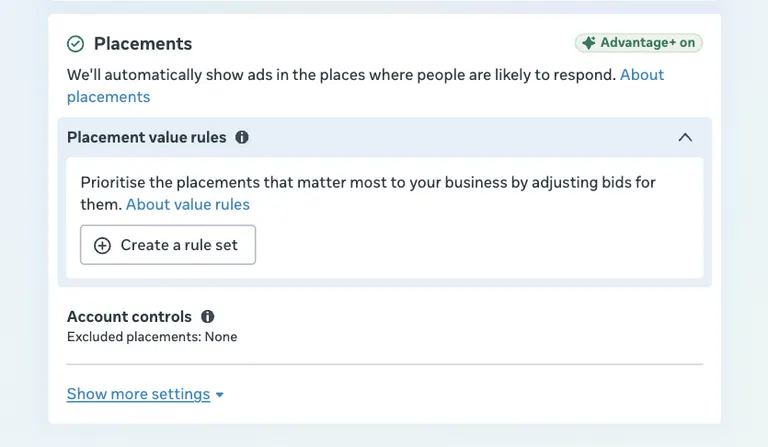
Placement settings are inside each ad set, so you handle them before you click Publish.
You pick an objective, and Meta then shows the placements your ad type and objective allow. Next, you decide whether Meta picks placements for you or you pick them yourself. Meta says not every placement is available for every ad.
With Advantage+ placements on, Meta's delivery system tries to make the most of your budget across the placements available to the ad. You supply the creative, and the system works out where each impression goes.
Facebook and Instagram share the same placement list, so you choose between them in a single ad set. If you're weighing the two apps, this Facebook vs Instagram cost and placement breakdown lays them side by side.
Placement Specs at a Glance
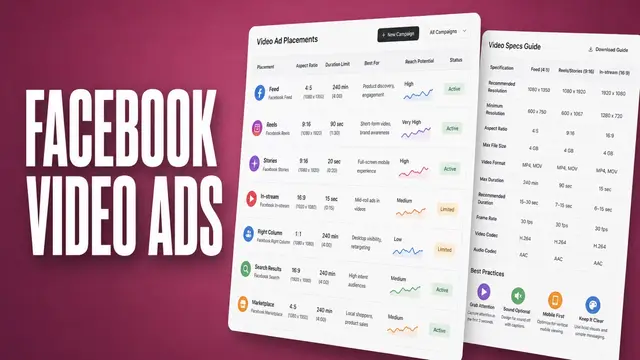
Three placements, three specs:
| Placement | Recommended ratio | Video length | Safe zone | Ready check |
|---|---|---|---|---|
| Facebook Feed | 4:5 | one second to 241 minutes | None listed | Ready if 4:5, 1440 x 1800 px |
| Instagram Reels | 9:16 | 0 seconds to 15 minutes | 14% top, 35% bottom, 6% sides | Meta suggests the bottom 35% stays clear of text or logos |
| Facebook Stories | 9:16 | one second to three minutes | The same as Reels | Not ready if longer than three minutes |
Not every creative fits every placement.
The full figures for each placement:
- Feed video: 4:5 and 1440 x 1800 pixels, from one second to 241 minutes.
- Reels: 9:16 and 1440 x 2560 pixels, with a video duration of 0 seconds to 15 minutes. Meta suggests keeping the edges free of text, logos, and other important creative elements. The minimum clear space is 14% of the top, 35% of the bottom, and 6% on each side.
- Stories: a 9:16 frame at 1440 x 2560 pixels, from one second to three minutes. Video longer than 15 seconds is split into separate Stories cards. Meta suggests keeping roughly 14% of the top and 20% of the bottom clear.
If you're building for Reels, the Instagram Reels ad specs guide covers the rest of the file requirements. A horizontal export won't fill the frame. Re-export it vertically before you upload.
Advantage+ Placements vs. Manual Placements: What's the Difference?
Two ways to set placements:
| Differentiator | Advantage+ placements | Manual placements |
|---|---|---|
| Who picks the placement | Meta's delivery system | You |
| Starting point | On by default | Off until you switch it on |
| Excluding a placement | Not available on this setting | Uncheck the placement |
| Limited spend on excluded placements | Not applicable, nothing is excluded | On by default when you exclude a placement on a Traffic campaign, can be turned off |
| Effect on Advantage+ | Stays on | Advantage+ not in use |
Advantage+ placements are the default setting. They hand the placement choice to Meta, while Manual placements put the controls and the upkeep on you.
For most advertisers, Advantage+ is the right setting. Meta recommends keeping it on because the delivery system can look across all available placements. Since it's already the default, you may not need to change anything.
Manual placements make sense in one narrow case. A placement you can't use for your brand or your creative justifies a narrower list. Even so, that list gives up whatever impressions the placement would have delivered.
Should I Use Advantage+ Placements?
Use Advantage+ placements when you're starting out, or when your creative fits most placements. The automation has more room to find placements that suit your ad. You also don't have to rebuild a list each time you add a creative.
If you cut your creative only for feed, check the Stories and Reels crops before you leave Advantage+ on, since Meta recommends 9:16 for both.
Keep manual control when one placement is a real problem. Brand safety is one reason. If a placement puts your ad beside content you won't sponsor, excluding it is the right move.
Factors to weigh before you exclude:
- Account-level brand suitability controls: Inventory filters, block lists, topic exclusions, and content-type exclusions are applied to an ad account and take effect automatically whenever someone in that account creates an ad.
They apply whenever people in that account create ads. These settings still hold even when they choose Advantage+ placements.
- One placement at a time: For each placement you exclude, click Manage excluded placements. There you can either allow limited spend or keep excluding the placement entirely.
- Value rules as a bid option: Meta's value rules let you set a value for a placement as a bidding criterion. A bid decrease can go up to 90%, so a placement's bid can drop sharply and still stay above zero.
What I Liked and Didn’t Like About Meta’s Placement Controls
Pros (What Actually Works)
- Manual setup is quick once found: In my walkthrough, saving manual placements took six minutes on each ad set, once I'd found the Edit option on Advantage+ placements.
- Creative per placement: Meta recommends different aspect ratios for different placements, so Stories and Reels can each get a crop sized for their own format.
- Account-wide brand suitability: Inventory filters and block lists set at the ad account level apply to new ads automatically. They apply even under Advantage+ placements, so one setting covers the account.
Cons (Where It Falls Short)
- Manual lists are your job: With manual placements, Meta hands you the list and the checkboxes for each placement. So keeping that list right falls to you.
- Exclusion isn’t on every objective: Only Awareness and Traffic campaigns still let you uncheck placements in the ad set, so on Sales or Leads you’re working with account-level controls and value rules.
- Excluded placements can still get a share: Meta built limited spend for sales, leads, traffic, engagement, and app promotion campaigns, but it only applies when you exclude a placement yourself.
Meta has removed ad-set placement selection for engagement, leads, app promotion, and sales, so in practice that now means traffic campaigns. The change is rolling out gradually, so some accounts may still see the old controls on those four objectives for a while.
When you exclude a placement during campaign creation, Meta aims for around 5% of budget on that placement if it's likely to improve performance. Meta recommends limited spend over full exclusion when Advantage+ isn't an option.
Should You Use Meta Ad Placements? My Take
Yes, but only with a clear reason to narrow the list. The Cons above show what each exclusion costs.
Most advertisers should keep the default and spend their effort on creative that fits the placements Meta chooses. One placement that won't work for you still justifies manual exclusion, so know exactly how to set it up.
Manual Placements Are Right For:
Three kinds of advertisers this fits:
- Advertisers with one placement that brand or format reasons rule out
- Teams building a separate creative cut for each placement group
- Anyone who wants to see exactly where an ad could appear before it publishes
Stick With Advantage+ Placements If You:
Three situations where this approach is a bad fit:
- Want full automation and don't plan to build placement-specific creative
- Expect to set one exclusion and never check it again, even though placement results change once ads run
- Need a fixed placement list for a long-running campaign
For those cases, keep Advantage+ placements on, or use a manual exclusion for the one placement that doesn't suit your brand or format.
How to Read Your Placement Breakdown in Ads Manager
Once your own ads are running, you need to know which placements do the work. Open the campaign, ad set, or ad you want to check. Then find the Breakdown drop-down. Click it, select By Delivery, then choose Placement.
If a placement has no impressions or spend, check whether your ad delivered there during the selected date range. If it has delivery but no conversions, check your tracking and attribution settings.
When the numbers do show, read each placement next to its creative and objective. Wait until a placement has enough results to judge, as a handful of conversions proves little. For a fuller list of what to track at each funnel stage, see the funnel-stage metrics guide.
How to Get Started with Meta Ad Placements in 11 Steps
These steps follow the awareness, traffic, or engagement path in Ads Manager.
- Go to Meta Ads Manager.
- Click + Create.
- Select Awareness or Traffic as your objective, then click Continue. These are the only two objectives that still let you pick placements in the ad set.
- Complete the ad creation steps until you reach the Placements section for the ad set.
- Hover over Advantage+ placements and click Edit.
- Select Manual placements.
- (Optional) Under Devices, click Edit, and uncheck any devices to exclude.
- (Optional) Under Platforms, uncheck any platforms to exclude.
- Under Placements, uncheck each placement you want to exclude.
- (Optional) If you selected Traffic, choose whether to allow limited spend to excluded placements. Awareness isn’t covered, so skip this step if you chose Awareness.
- Complete the rest of your ad and click Publish when you're ready.
If a step doesn't match what you see, follow the Placements section in your own Ads Manager.
Engagement, Leads, App promotion, and Sales campaigns no longer show placement controls in the ad set. For those, use account-level placement exclusions (now set per objective) or a placement value rule to lower bids on a placement.
I set manual placements and saved them in about six minutes per ad set. The first time I opened a new ad set, I couldn't find manual placements because they sit behind the Edit option on Advantage+.
The walkthrough took six days, which was enough to do the setup from start to finish. Six days is too short to judge which placements earn their keep. That judgment takes a full campaign's results.
Meta Ad Placement Best Practices I Wish I Knew Earlier
Three habits that would have saved me some mistakes:
- Check the crop per placement: Compare each placement's crop against its spec before you publish.
- Set your exclusions early: Decide which placements you'll never use before you build the ad set.
- Check the Advantage+ Edit option first: If manual placements seem to be missing, look at that option before you rebuild the ad set.
Two mistakes are easy to make:
- You look for manual placements anywhere except the Edit option on Advantage+.
- You judge a placement on a few results, which can’t show where the ad should run.
If you're building a carousel, look at carousel ad examples for how the same carousel holds up when it runs in several placements.
Where Atria Fits: Build the Creative to Test
Creative fit by placement: A creative that works in Feed may need a different cut for Reels, so judge each placement on its own. The hard part is building variations fast enough to test them.
Atria is a creative intelligence platform for Meta ads. The Andromeda creative strategy guide explains how creative variety affects delivery.
Placement data tells you where an ad ran, and Atria helps with the next move. Raya is an AI teammate trained on $10B+ in real ad spend that works inside Slack, while Radar grades your live ads and tells you exactly what to change. You can start with 1,000 free credits, no credit card needed.
My Verdict on Meta Ad Placements
Keep Advantage+ placements on as your default, and narrow the list only for a placement you can't use. A manual list can address a brand-safety concern, while a separate creative cut helps when the original format doesn't fit.
Build creative for the placements you keep and check each crop before it runs. Before publishing, decide which placements you'd exclude and why.
Frequently Asked Questions
What are placements in Meta ads?
Placements are the specific spots where an ad can appear, such as Facebook Feed, Instagram Reels, or Audience Network. Meta groups them into feeds; Stories, Status, and Reels; in-stream; search; and apps and sites.
How do I change placements in Meta ads?
To change placements in Meta ads, in the ad set, find Advantage+ placements and click Edit, then select Manual placements. Then uncheck the placements you want to exclude.
That’s the path for Awareness and Traffic campaigns. Engagement, Leads, App promotion, and Sales no longer have ad-set placement controls, so use account-level exclusions instead.
Should I use Advantage+ placements?
Yes, for most advertisers. Meta recommends Advantage+ placements. Switch to manual only when a placement doesn't fit your brand or creative.
How do I exclude placements in Meta ads?
To exclude placements in Meta ads, switch to manual placements in the ad set, then uncheck placements to exclude. On a Traffic campaign, Meta defaults eligible advertisers into limited spend instead of a full exclusion.
When you exclude a placement during campaign creation, Meta aims for around 5% of budget on that placement if it's likely to improve performance. You can turn off limited spend at any time in Meta Ads Manager. To block one entirely, keep it excluded under Manage excluded placements.
What does Meta recommend when you need to exclude a placement?
Limited spend is the option Meta recommends over completely excluding a placement. Use it when you're unable to use Advantage+ placements and need to exclude one manually.
What tool can help build and test creative for Meta placements?
Atria is one option for testing Meta creative variants. It analyzes what has already won in your account, generates new variations from that data, and batch-uploads them to Meta.
Can you still exclude placements in Meta ads?
Yes, but only in some campaigns. Awareness and Traffic campaigns still let you uncheck placements in the ad set. Meta has removed that option for Engagement, Leads, App promotion, and Sales, and it’s rolling the change out gradually, so some accounts may still see the old controls for now.
For those four objectives, you can still set account-level placement exclusions by objective in Account controls. You can also use placement value rules to lower bids on a placement you’d rather avoid.