
A client hands over their Facebook ads, and your own team can’t even open the account. Or you get in, and Meta charges the client’s card for ads nobody approved.
I walked one real online course business through the setup to learn how to manage Facebook ads for clients without that mess.
The walkthrough ran over a documented 10-day window and covered partner access, billing, tracking, a drafted campaign, and lead-form setup. The review rhythm, reporting, and offboarding steps are the plan for launch, built from what Meta documents.
By the end, you'll have a repeatable order of work for every client, with access, billing, and tracking locked in before anyone spends a dollar.
How to Manage Facebook Ads for Clients: TL;DR
- To manage Facebook ads for clients safely, keep the client as the owner. You do that by getting partner access to their Business Portfolio and putting billing on their own ad account.
- Work through access, billing, and tracking first, then naming, the campaign, lead handling, and a review rhythm, in that order. Plan reporting and offboarding from day one.
- Confirm tracking with the Test events tool before you spend anything.
- Charge with a flat fee, a percentage of spend, or a retainer, and show your fee and the ad budget on separate lines.
How I Walked Through the Workflow
I walked through the whole process for one online course business over a 10-day window, using a Business Portfolio, Page, pixel, and ad account. Every setup step ran on that account, including a partner access request.
The one exception is the test-event check in Events Manager: I drew that result from what Meta documents rather than watching it happen myself.
The campaign stayed in draft the whole time, so the walkthrough still couldn’t show how it performs after weeks of real spend.
What You'll Need Before You Start
Prerequisites:
- Your agency's Business Portfolio ID, which the client enters to grant you partner access.
- The client's Facebook Page and ad account.
- Admin rights on the client's ad account for anyone who needs to change the payment method.
Time required: My walkthrough ran over 10 days. The partner request waits on the client, so add their approval time to your schedule.
How to Manage Facebook Ads for Clients: Step-by-Step
Work through these eight steps in order for every new client. Each step assumes the one before it is done.
Step 1: Get Partner Access Without a Shared Password
Ask the client to share their assets with your agency. Your agency should come in as a partner, which is a different role from a regular employee in their portfolio.
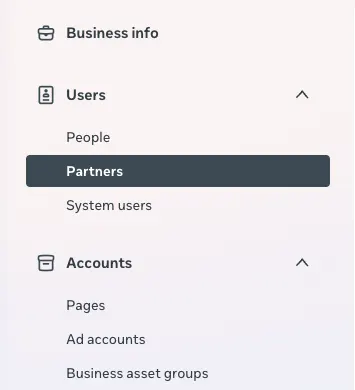
Meta's partner setup uses your business portfolio ID, and your agency needs a business portfolio of its own. In Meta Business Suite, the client goes to Settings and clicks Partners in the Users section of the menu on the left.
They enter your agency's Business Portfolio ID and choose which assets to share, such as the Facebook Page and the ad account.
Two details trip people up. Only someone with full control of the client's portfolio can add a partner. Meta says another person with full control may need to approve the request, so plan for that step before you promise a launch date.
Partial access covers tasks such as creating content, managing ads, and responding to messages, which is usually enough for day-to-day work.
Three guardrails for the request:
- Keep a second admin on the client’s side: A setup that runs through one personal profile is a single point of failure.
- The client's password stays private: A shared login makes it impossible to tell who changed what, and it puts the account at risk.
- Check ownership first: Only the organization that owns an asset can share it with another business portfolio. So check who owns each asset before you sign off. Read white-label ownership and partner access first.
Pro tip: Ask the client to turn on two-factor authentication for their business portfolio before they add your agency as a partner.
Step 2: Put Billing on the Client's Ad Account
Put the payment method on the client's ad account, and keep your own card off it. You need the Admin role (or full control, if the ad account sits in a business portfolio) to change the payment method, and an advertiser can’t change it.
Invoice your management fee on its own line, apart from the ad budget.
Ad spend you pay up front ties up your cash, which is one more reason to keep the spend on the client's card.
To pay an ad account balance on the spot, Meta requires a default payment method on file and an admin on the account. Manual payment methods can’t be used for that.
Meta charges the default payment method when spend hits the payment threshold or the monthly bill date, and it uses any ad credits and available funds first.
Manual-payment accounts draw from available funds you add in advance instead. For automatic-payment accounts, save the client's card on the ad account and confirm it's the primary payment method before you plan a launch date.
Pro tip: Note who on the client's side holds the Admin role, so you know who to ask when the payment method needs a change.
Step 3: Confirm Tracking Before Any Money Is Spent
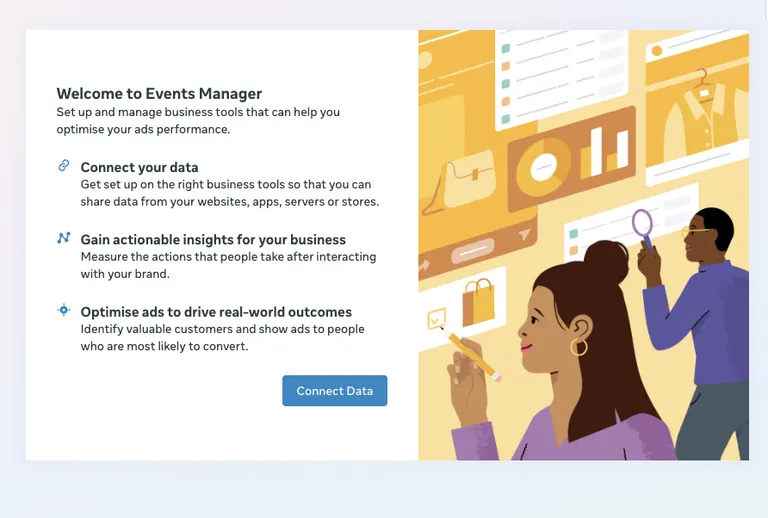
Set up the Meta Pixel in Events Manager first, and connect the Conversions API as well. Meta describes its Meta-enabled Conversions API as delivering web data to Meta alongside your Meta Pixel.
The next step is to prove the tracking works. In Events Manager, open the Test events tab for your pixel, enter the business's website URL, and click Open website.
If you selected a dataset, look for the website events section instead of browser events. For website events, activity is only recorded while the Test Events web page is open.
Keep that page open, click through the site, and trigger the action you care about, such as a sign-up. Once the event appears, confirm the Pixel and Conversions API events are deduplicating before you spend a dollar.
If it doesn't appear within one minute, Meta recommends disabling ad blockers, refreshing the page, and interacting with it again.
Before launch, run three checks:
- Budget time for the event test, since you have to trigger the event yourself.
- Check where the lead lands. A tracked sign-up should reach the place your client handles leads, such as their CRM or inbox. Events Manager alone doesn't prove that.
- Review who can reach the pixel, because access problems can hide inside tracking.
Pro tip: Test the pixel before you connect a CRM, so each connection is checked on its own.
Step 4: Name Campaigns, Ad Sets, and Ads With a Client Code
For campaigns, start with a client code, then add funnel position, objective, budget type, and date. A name you can read without opening the campaign beats a clever one you have to decode. The full field order is in the Naming Convention Template below.
Pro tip: Keep one shared sheet that lists each client code next to its Business Portfolio and ad account. With that sheet, a new team member never has to guess.
Step 5: Draft the First Campaign With One Objective
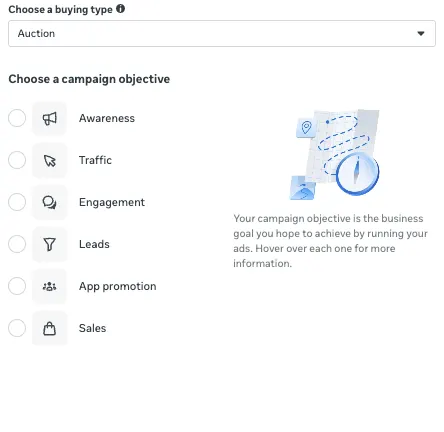
Pick the objective that matches the client's goal. For sign-ups, use Leads, and choose the conversion location at the ad set level, such as Website or Instant Forms.
For purchases, use Sales. Keep the structure simple with one campaign, one ad set, and two or three ads that test different angles on one offer.
Set these on the ad set:
- The audience
- The placements
- A daily or lifetime budget
If you set the budget at the campaign level instead, Meta spreads it across ad sets using Advantage+ campaign budget. Meta says that setup is best suited for campaigns with at least two ad sets. Build the campaign in Ads Manager, but don't activate it until the client approves it.
The objective, budget, and placements give the client one clear thing to say yes to. Save that decision in writing as well. When a client asks why the campaign looks this way, a note answers the question faster than memory does.
Pro tip: Name the draft with the convention from the naming section below before the client sees it. That way the name in the approval thread matches the one in the account.
Step 6: Set Up Lead Handling Before the First Lead Arrives
Leads from lead ads with forms and from click-to-message ads land in Leads Center. If you chose Website as the conversion location in Step 5, those sign-ups won’t appear in Leads Center automatically. Check that they reach the client's website form system or CRM instead.
When you build an instant form from your Facebook Page, full name is collected by default. You can select phone number and email address as contact fields.
For leads available in Leads Center, you can filter them, assign an owner, add labels or notes, and move each lead through stages. The default stages include Intake, Qualified, Converted, Lost, and Not qualified.
You can create custom stages to match your sales funnel. Agree on what counts as qualified with the client before launch (get it in writing), so everyone sorts leads the same way.
You can download instant-form leads as a CSV (comma-separated values) file from Meta Ads Manager or Meta Business Suite, Meta says. You don't need a CRM connection to download leads.
The Leads Center CSV has seven fields:
- Date
- Name
- Email address
- Phone number
- Stage
- Source
- Owner
The Leads Center CSV follows your current filter and is limited to those seven fields. Downloads from Meta Ads Manager or the instant forms page in Meta Business Suite include more columns, plus answers to any custom questions.
To see all of the data, you’ll need both Facebook Page admin permissions and a role on the ad account linked to the lead ad.
If some fields are blank, you may not have the correct permissions for leads access in Meta Business Suite. If the client wants leads in a CRM, connect one later as a separate step.
Pro tip: Export leads on a schedule so you never depend on the platform to hold them for you.
Step 7: Set the Review Rhythm
You wear yourself out checking accounts all day, and that rarely helps, so set a rhythm. Change something only when the data supports it. The rhythm for each check is in the Management Cadence table below, and payment status comes first in the daily check.
Watch click-through rate (CTR) weekly. When CTR falls, check for creative fatigue before you refresh the creative.
Pro tip: Write down why you changed something, so the next review starts from a reason.
Step 8: Plan the Offboarding Before You Start
Offboarding starts on day one, because the client owns the assets. The Page and ad account stay in the client's hands while your agency holds partner access.
In Meta Business Suite, removal runs through Partners and requires full control of the business portfolio. Ask someone with full control to open Options in the top right, choose Remove from business portfolio, then click Remove partner.
When the relationship ends:
- Export a final report and the campaign history.
- Have someone with full control remove your agency's partner access from the client's assets.
- Confirm the client's ad account has its own default payment method on file.
- Hand over the reporting and creative files your contract includes.
Pro tip: Export the lead history at the start of offboarding, while the account is still fully set up.
Common Mistakes to Avoid
Watch for these six mistakes:
- Sharing a login: Ask for partner access.
- Building assets under your own portfolio: Build the Page and ad account in the client's own portfolio from the first click. Only the owner can share an asset with another business portfolio.
- Launching before tracking works: You can't tell whether the campaign is seeing real results.
- Reporting clicks as wins: Clicks show interest. Leads, qualified leads, and revenue show results.
- Changing everything at once: When the image, audience, and offer all change, you can't tell what caused the result. Change one thing at a time.
- Splitting the budget too thin: Many small ad sets make each one harder to read. Start with fewer, larger ad sets.
If you want a wider look at the AI tools agencies use for Meta, read AI tools for Meta ads agencies.
Management Cadence for Client Accounts
Each check answers a different question, so each one runs on its own clock. Use this table as your default rhythm, then adjust it when a client's budget or launch schedule changes.
Default rhythm by check:
| Check | What you look at | What you change |
|---|---|---|
| Daily | Payment status, rejected ads, broken links, lead delivery | Fix the broken item only |
| Two or three times a week | Spend against budget, cost per result, lead quality | Shift small amounts of budget |
| Weekly | Creative performance, frequency, landing page results | Pause clear underperformers, add new creative |
| Monthly | Revenue, partner access | Set next month's tests, remove unused access |
For a full review of account setup, tracking, and creative, the account audit checklist covers each step. Run that review quarterly.
Naming Convention Template
Use one delimiter across every level, and keep client codes short and fixed. Use underscores as the delimiter, since they keep each part easy to spot.
The field order, using BLU as the example client code:
- Client: The client code alone, such as BLU.
- Campaign: Funnel position (TOFU is top of funnel), objective, budget type, and date, such as BLU_TOFU_Leads_Daily_Jul26.
- Ad set: Audience type, audience seed, and placement, such as BLU_Lookalike_SignupList_Feed.
- Ad: Creative angle, format, and offer, such as BLU_Testimonial_Video_SignupOffer.
Never reuse a client code for a second client, even briefly. For a fuller system, read about campaign naming conventions.
Client Reporting: What to Include
Lead with business results. Clients care about leads, qualified leads, and cost per lead, plus return on ad spend (ROAS) when they can share revenue data.
Reach and clicks are easy to show, but they don't answer the sales question, and reporting them as wins is where client trust breaks down.
Your monthly report covers:
- Spend against the agreed budget, with pacing for the month
- Leads and qualified leads, with the stage breakdown from Leads Center or the client's CRM, depending on where leads are captured
- Cost per lead and cost per qualified lead
- Top campaigns and ads, with one line on why each works
- Changes made this month, with the reason for each
- Next month's tests and goals
Say which attribution window you used, so the client can check your numbers against their own. For a look at how teams automate these reports, explore agency reporting tools.
How to Price Client Ad Management
Choose the fee model based on the scope of work and how often the client’s ad spend changes.
- Flat fee: A flat fee suits a fixed scope with a clear start and end, such as a one-time launch.
- Percentage of ad spend: A percentage scales with the budget, so it suits clients whose spend changes a lot from month to month.
- Retainer: A fixed monthly fee gives you income you can plan around, and the client gets a bill they can predict.
Whatever you choose, the client should be able to see what goes to Meta and what goes to you.
Atria Makes Client Facebook Ads Easier to Manage
Most of the work above is access, billing, naming, and reporting. The creative and performance work can run inside Slack with Atria, a creative-intelligence platform for Meta ads. Raya turns real ad spend data into briefs and audits, and Radar grades your ads and flags the ones starting to decline.
How Atria helps with client accounts:
- Account limits: Core connects five ad accounts, Plus connects 10 ad accounts, and Business connects unlimited ad accounts.
- Naming: Plus, Business, and Enterprise include a naming convention setting. Core doesn't.
- Radar: Radar, Atria's 24/7 AI strategist, is included in Core.
- Seats and sharing: Core includes five seats, Plus eight seats, and Business 15 seats, with extra seats at $20/extra seat/month. Inviting guests is available on Business and Enterprise.
- AI credits: Core includes 4,000 AI credits a month, Plus 10,000 AI credits, Business 25,000 AI credits, and Enterprise a custom allowance.
Atria's four plans:
- Core: $159/month ($129/month, billed annually), for small teams getting started, analyzing up to $500K in ad spend a month.
- Plus: $429/month ($343/month, billed annually), for growing teams, with a monthly ad spend limit of $1M.
- Business: $1,199/month ($959/month, billed annually), for scaled marketing teams, with unlimited ad spend analyzed.
- Enterprise: Custom pricing with a contact-sales path, for large organizations, with unlimited ad spend analyzed and a custom number of ad accounts.
If you manage Facebook ads for many clients, compare the plans above against your account count and seat count before you choose a plan.
To see how Atria fits your client accounts, start with 1,000 free credits, no credit card required.
Frequently Asked Questions
How can I run Facebook ads for my clients?
To run Facebook ads for your clients, get partner access to the client's Business Portfolio, set billing up on their ad account, and confirm tracking before anything launches. Then run one campaign with one objective, review on a fixed rhythm, and report on business results.
What's the hardest part of client Facebook ad management?
The hardest part of client Facebook ad management is that access and billing have to be settled first, and both depend on the client.
A partner request may need approval from another person with full control, and billing needs the client's card on the account with someone assigned the Admin role to manage the payment method.
Do I need to be an admin to manage a client's ad account?
No, not for everyday work. An Advertiser role can create and edit ads and see reports. A change to the payment method requires the Admin role, or full control of an ad account in a business portfolio, so ask the client to handle billing or give you that access.
Should I run a client's ads from my own ad account?
No, I wouldn't, because the client owns the assets, not your agency. Keeping everything on the client's ad account is what makes a clean handover possible once the work ends.
Can Atria help me manage client Facebook ads?
Yes, on the creative and performance side. Atria works in Slack, where Raya builds briefs and audits, and Radar grades your clients’ ads.