

You've got forty live ads that all need the same tweak. A new landing page URL, fresh UTM tags, a budget bump before the weekend. Editing them one at a time is a Tuesday you'll never get back, and somewhere around ad number twenty you'll fat-finger a URL and not notice until Monday.
There are two native ways to bulk edit Facebook ads, both free and built into Ads Manager. Select-and-edit handles the same change across many ads in a few clicks. Export, edit, re-import uses Meta's spreadsheet template when every ad needs a different value.
Below you'll get both, step by step, plus how to bulk-create whole campaigns, what bulk edit flat-out can't do, and when it's worth reaching for a tool.
How to Bulk Edit Facebook Ads in Ads Manager and Excel
The fastest route lives right in the campaigns table. It's best when you're applying the same change to a batch, such as pausing a group of ads, shifting budgets, swapping a destination URL, or updating copy.
Meta documents the flow on its Edit Multiple Ads at Once help page, and here's how it runs today.
Step 1: Select what you want to change. In Ads Manager, tick the checkboxes next to the campaigns, ad sets, or ads you're editing. Work at the level where the change belongs. Budgets usually live at the ad set level, while copy and links live at the ad level.

Step 2: Click Edit. A side panel slides in with the shared settings for everything you selected. From here you can change budget, optimization, and creative in one move.
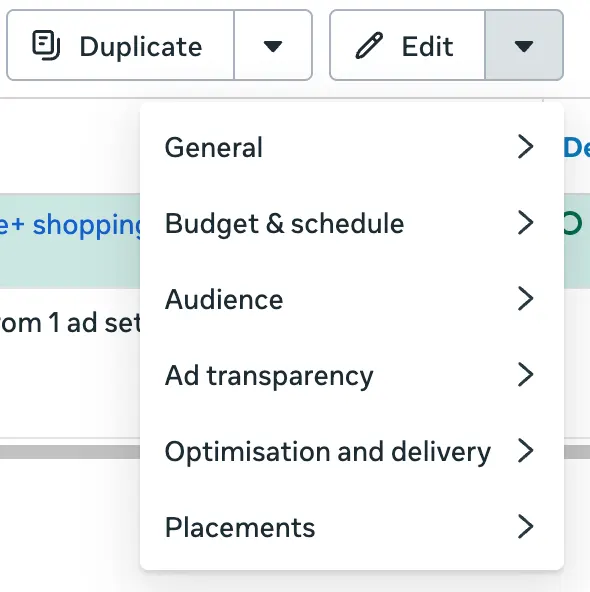
Step 3: Use the Edit dropdown to jump to the right setting. Instead of scrolling the whole panel, open the dropdown next to Edit and go straight to the area you’re changing, such as budget, optimization, or creative.
Step 4: Use "Edit each ad set" or "Edit each ad" when the values differ. Say every ad needs its own UTM string. The "Edit each" option opens items one at a time in a modal so you can give them different values without leaving the panel.
Step 5: Review, then Save to Draft or Publish. Save to Draft if you want a second look before anything goes live. Publish when you're ready.

This route is quick when the edit is uniform. The moment each ad needs a different value across hundreds of rows, the spreadsheet is faster.
Bulk Edit with Excel: Export, Edit, Import
Meta's bulk editor accepts an Excel (.xlsx) or CSV file.
You export your ads, change the cells, and import the file back. It's the right tool when every ad gets a different value, when you want to review a campaign plan offline, or when you're rebuilding a known-good structure. Meta walks through the mechanics on its import and export help pages.
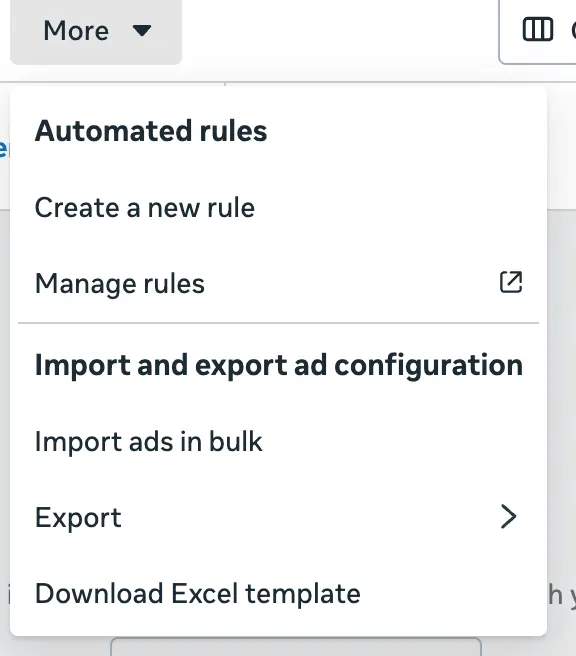
Step 1: Export your ads. Click More above the table and choose Export (or Customize export) as .xlsx or .csv. To edit existing ads, select them first, then export. The menu label is More, so don't go hunting for an "Import & Export" button that isn't there anymore.
Step 2: Edit the cells. You can change any field except Ad ID, Campaign ID, and Image hash. Those three are locked. Keep the ID columns filled to update your existing ads, and clear them to create new ones instead.
Step 3: Know which columns you're touching. The template's column names don't match the Ads Manager labels, which trips up everyone the first time.
Here are the ones you'll edit most:
| Column | What it controls |
|---|---|
| Body | Primary text above the creative |
| Title | Headline |
| Link | Destination URL |
| URL Tags | UTM parameters appended to the link |
| Image Hash | Points the row at an image already in your library |
Step 4: Import the file. Click More, then Import ads in bulk. This one's desktop only. Attach your spreadsheet and add any new images or videos in the same window.
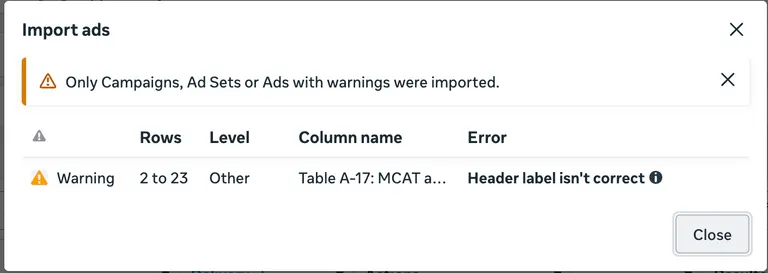
Step 5: Read the import summary. Warnings let the import go through and errors stop it. Click View errors in Excel to see exactly which rows failed and why, fix those cells, and re-import.
Step 6: Review and publish. Your changes land as drafts until you publish them, so you get one last look.
The file caps at roughly 2MB, which usually covers several hundred ads. Meta doesn't set a fixed per-file ad count, so don't plan around one. If you hit the size limit, split the job into a couple of imports.
How to Bulk Create Facebook Campaigns
The same spreadsheet creates whole campaigns. You don't need a separate campaign file, because each ad row carries the campaign and ad set it belongs to.
Here's the process:
- Build one campaign by hand, then export it. Set the objective, one ad set, and one ad exactly how you want every campaign to look. Export it as .xlsx so you get a file with every required column already filled.
- Clear the ID columns. Delete the values in Campaign ID, Ad Set ID, and Ad ID. Keep the header row.
- Copy the rows once per campaign. Give each copy its own Campaign Name and Ad Set Name.
- Change what differs. Usually budget, country, link, and the creative columns.
- Import and check the preview. Meta matches blank-ID rows by name, so reuse a name that already exists and your "new" ads quietly land in the old campaign. Confirm the preview shows the number of new campaigns you expect before you publish.
A tiny example makes the name-matching rule click. These three rows create two campaigns:
| Campaign Name | Ad Set Name | Ad Name | Link |
|---|---|---|---|
| Fall Prospecting | Broad US | Hook A | /fall |
| Fall Prospecting | Broad US | Hook B | /fall |
| Fall Retargeting | Site visitors | Hook A | /fall |
Rows one and two share a name, so they land in the same campaign and ad set. Row three gets its own name, so it creates a second campaign. Leave the IDs blank on all three to create rather than update.
Bulk Edit Advantage+ Creative
To turn Advantage+ creative enhancements on or off across several ads at once, every ad you select has to use the same format.
You can still change budgets, schedules, and optimization settings in bulk. Just know that some creative-level changes reset Meta's automatic enhancements, so spot-check a couple of ads after a big edit.
What Bulk Edit Cannot Do
A few limits are worth knowing before you run a big batch, especially now that Andromeda rewards the kind of creative volume that makes bulk edits tempting in the first place.
Some fields are locked. You can't edit Ad ID, Campaign ID, or Image hash, and you can't change a published campaign's objective. If you need a new objective, build a new campaign instead.
Big edits can restart the learning phase. If you change enough about an ad, Meta sends it back into learning, or back through review. Your delivery dips while it re-stabilizes, so time major edits for when a short dip won't hurt.
Export and import drop some things. When you round-trip a campaign through the spreadsheet, Meta strips a handful of features, including A/B tests, offers, branded-content partner Pages, languages beyond 10, and ads with multiple text options. Reservation campaigns don't survive the trip at all.
Bulk Edit Best Practices
A few habits keep bulk edits from turning into bulk mistakes.
- Name every ad before it launches. Include the angle, format, and date. Once you've got fifty live ads, inconsistent names make performance analysis a guessing game.
- Test one variable per batch. Change the hook, keep the visual, and write down what you expect to happen before you launch.
- Respect the learning phase. Splitting a budget across too many new ads in one ad set stalls them all. Meta needs roughly 50 optimization events per ad set per week to settle.
- Set automation rules before you launch. Configure CPA or CTR pause rules up front so a loser can't drain budget overnight.
Follow this quick pre-launch checklist before you hit publish on a bulk batch:
- Assets organized with consistent file names.
- Naming convention locked (campaign, ad set, angle, date, format).
- Ad sets mapped, each with budget for about 50 conversions a week.
- A written hypothesis for the test.
- Every ad reviewed for copy, creative, URL, and CTA.
- Automation rules set, then publish.
When to Use a Tool Instead
Native bulk edit is enough for editing live ads, launching a handful of new ones, rebuilding a campaign now and then. For that work, you don't need to pay for anything.
The spreadsheet route starts costing more than it saves once you're past roughly twenty ads a week. Image-hash lookups, filename matching, the 2MB cap, and error iterations add up until you're spending more time wrangling the file than launching.
That's the point where a dedicated tool earns its keep. Reach for one when you launch many ads a week, need lots of creative variations, or manage several ad accounts at once. Bulk launchers and creative testing platforms publish straight through Meta's API and skip the spreadsheet entirely.
Bulk Creation and Upload Tools
If native editing has run out of road, a few tools cover the high-volume end.
- AdStellar generates image, video, and UGC ads, then bulk-launches them to Meta.
- Adnova has a Bulk Ad Launcher that fires 100-plus ads in a click, from $79/month billed annually, plus an inspiration library and creative analytics on its Plus plan.
- Hunch builds catalog ads from a product feed, which suits large e-commerce catalogs.
Atria, our platform, is a creative intelligence tool for Meta and TikTok. Raya pulls winning hooks and angles from your account and competitors, turns them into data-backed briefs, and batch-launches to Meta.
Radar grades your live ads and flags the ones sliding. Best for teams that want research, briefs, and launch in one place. Core is $129/month billed annually.
For a wider field of options, see our rundown of Meta ads AI tools.
If you want to see what that looks like on your own account, start free. You don’t need a credit card, and you get 1,000 free credits to play with.
Frequently Asked Questions
Is Facebook bulk upload free?
Yes. Meta Ads Manager's native bulk editor, the Import and Export feature, is free on every ad account that has it. It runs on desktop only.
How many ads can I bulk edit or upload at once?
There's no fixed per-file ad limit from Meta. The practical ceiling is the file size, which caps around 2MB and usually fits several hundred ads. For bigger jobs, split the work across a few imports.
Can I bulk edit existing ads?
Yes, you can bulk edit existing ads. Export the ads, change the cells, and keep the Ad ID, Ad Set ID, and Campaign ID values intact before you re-import. Filled IDs tell Meta to update; blank IDs tell it to create new ads.
Why does my import keep failing?
Imports fail at the row level, and Meta tells you which rows. Read the summary and click View errors in Excel. The usual culprits are a filename or capitalization mismatch, an attempt to edit a locked field, an objective that doesn't match the optimization goal, or a file over the 2MB limit.
Can you edit a Facebook ad once it's running?
Yes, but with caveats. Some edits restart the learning phase or push the ad back through review, and you can't change a published campaign's objective. For big swings, build fresh rather than editing a live winner into the ground.